



By Byte in Magical Solution
· 2,761 views
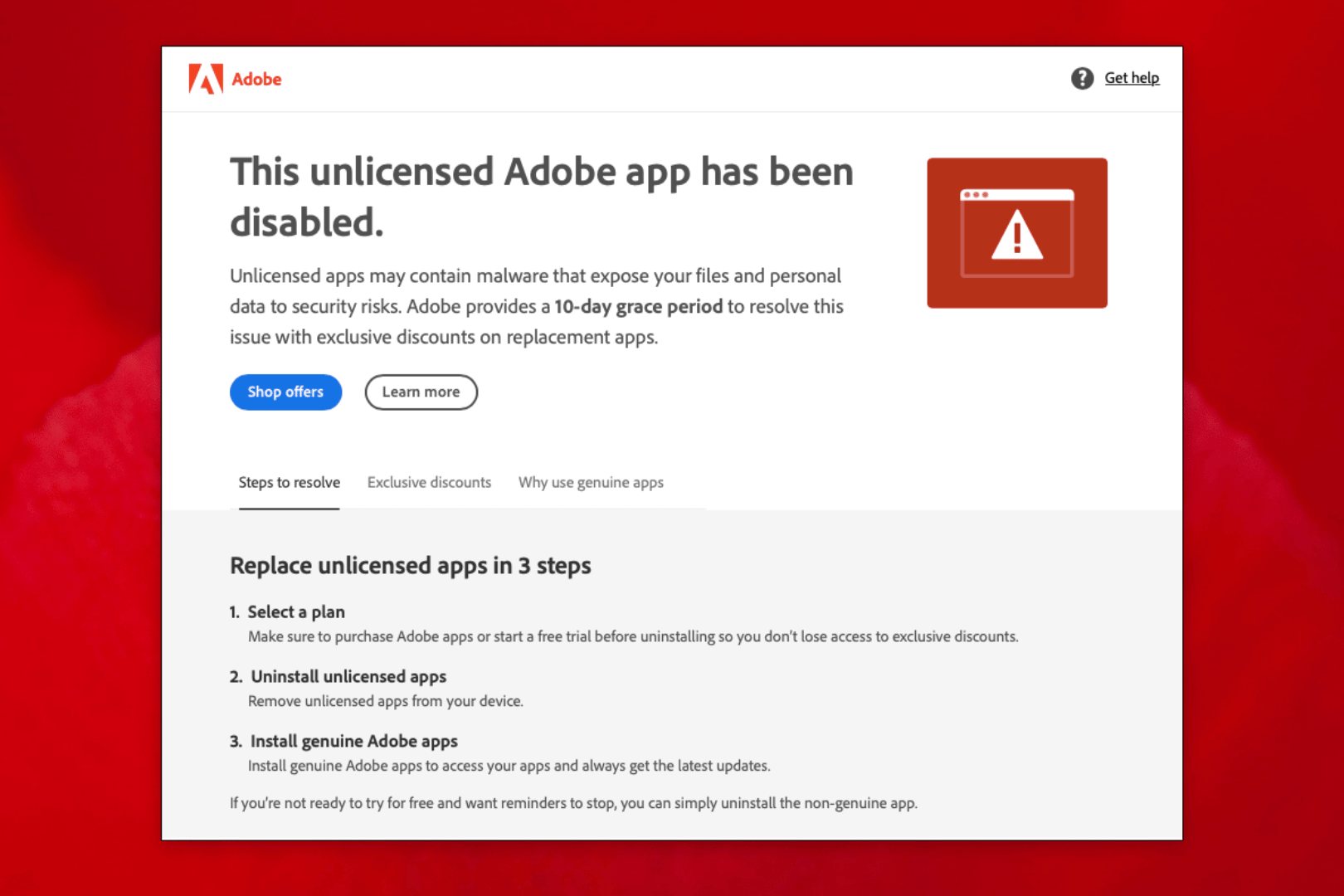
As an Adobe user, you might have encountered the frustrating "Non-Genuine Adobe App Will Be Disabled Soon" pop-up. This annoying alert can interrupt your workflow, especially if you're using a pre-activated version of Adobe software like Photoshop. For those of us who rely on the internet frequently during our creative sessions, this issue can be quite a hassle. But don't worry—I've found a simple and effective solution to block these interruptions without disrupting your internet usage for other applications.
The Problem
You've installed a pre-activated version of Photoshop, and it works perfectly fine—until you connect to the internet. That's when the dreaded non-genuine pop-up appears, causing frustration and breaking your concentration. The alert is a nagging reminder that Adobe's servers are constantly trying to verify the authenticity of your software.
The Solution
The key to avoiding this pop-up is to block internet access for Photoshop specifically, without affecting your entire system's connectivity. This can be done by creating a firewall rule on your computer that prevents Photoshop from accessing the internet. Here’s how you can achieve this on both Windows and Mac operating systems.
How to Create a Firewall Rule on Windows
-
Open Windows Firewall:
-
Press
Win + Rto open the Run dialog box. -
Type
wf.mscand press Enter to open the Windows Firewall with Advanced Security.
-
Press
-
Create an Outbound Rule:
- In the left pane, click on Outbound Rules.
- In the right pane, click on New Rule....
- Select Program and click Next.
- Select This program path and browse to the executable file (.exe) of the application you want to block.
- Click Next.
- Select Block the connection and click Next.
- Ensure all profiles (Domain, Private, Public) are selected and click Next.
- Give the rule a name (e.g., Block [Application Name]) and click Finish.
-
Create an Inbound Rule (Optional):
- Follow the same steps as above but select Inbound Rules instead of Outbound Rules to block incoming connections if necessary.
Using Third-Party Software
For more control over application-level internet access, you can use third-party software like NetLimiter or Windows Firewall Control. Here’s how to use NetLimiter:
-
Install NetLimiter:
- Download and install NetLimiter from the official website.
-
Configure NetLimiter:
- Open NetLimiter.
- Find the application you want to block in the list.
- Click on the application to expand its settings.
- Set the download and upload limits to 0 or disable the application’s internet access entirely by clicking on the block icon.
Using NetLimiter
-
Install NetLimiter:
- Download and install NetLimiter from the official website.
-
Block Internet Access:
- Open NetLimiter.
- In the list of applications, find the one you want to block.
- Click the "X" button next to the application's name to block all traffic for that application.
- Alternatively, you can right-click the application and choose "Block All Traffic".
Using Windows Group Policy (For Advanced Users)
-
Open Group Policy Editor:
-
Press
Win + Rto open the Run dialog box. -
Type
gpedit.mscand press Enter to open the Group Policy Editor.
-
Press
-
Navigate to Policies:
- Go to Computer Configuration > Windows Settings > Security Settings > Windows Firewall with Advanced Security > Outbound Rules.
-
Create a New Rule:
- Right-click on Outbound Rules and select New Rule....
- Follow the same steps as for the Windows Firewall method described above to create a rule that blocks the specific application.
How to Create a Firewall Rule on Mac
-
Enable Firewall:
- Open System Preferences.
- Go to Security & Privacy.
- Click on the Firewall tab.
- If the firewall is not already enabled, click Turn On Firewall.
-
Block Specific Application:
- Click on Firewall Options or Advanced.
- Click the + button to add an application.
- Navigate to the application you want to block and select it.
- Change the setting to Block incoming connections for that application.
- Note: This method primarily blocks incoming connections and might not be fully effective for outgoing connections.
Using a Third-Party Application
For more control, including blocking outgoing connections, you can use third-party software like Little Snitch or Radio Silence.
by using Radio Silence
-
Install Radio Silence:
- Download and install Radio Silence from the official website.
- Follow the installation instructions.
-
Configure Radio Silence:
- Open Radio Silence.
- Click on Block Applications.
- Click the + button to add the application you want to block.
- Select the application and it will be added to the block list.
Benefits of Blocking Internet Access
- Avoid Interruptions: No more annoying pop-ups disrupting your workflow.
- Maintain Security: Your system remains secure as other applications still have internet access.
- Efficiency: You can continue to use Google and other online resources while working on your projects without hassle.
Conclusion
By creating a firewall rule to block internet access for Photoshop, you can bypass the non-genuine Adobe pop-up and maintain a smooth workflow. This method ensures that you can stay productive and connected to the internet for other tasks without any interruptions. Give it a try and enjoy a seamless creative experience!
Recommended Comments